Respect for real life Controls Guide
Move, drive, call, and interact on PC, mobile, or console without fighting the UI.
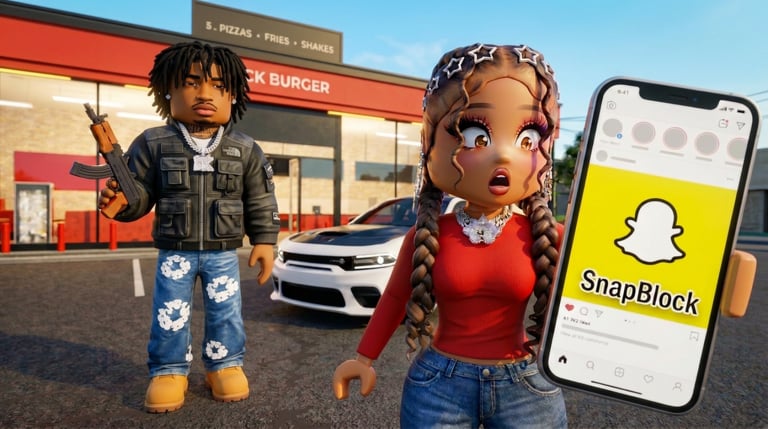
Respect for real life asks you to walk districts, drive under pressure, tap phone apps mid-scene, and hit world prompts at counters or crime scenes. This Controls guide explains PC, mobile, and console patterns for movement, vehicles, phone use, and interactions so device friction does not ruin your Roblox roleplay. Pair it with Getting Started on day one.
Roblox shares a common input layer, while the experience adds its own phone and job UI. Labels can shift after patches—when something moves, rejoin once and check Updates.
Movement basics (all platforms)
You need confident walking before high-speed chases:
- Move with WASD (PC), left thumbstick (console/mobile virtual stick), or auto-move toggles if enabled in Roblox settings.
- Camera with mouse (PC), right stick (console), or drag gestures (mobile).
- Jump / climb for curbs, steps, and construction props.
- Sprint when available to catch buses of friends leaving without you.
- Shift lock / first person (PC/console options) helps precise counter work and driving lanes.
If character movement feels floaty, lower camera sensitivity slightly. City RP rewards smooth tracking more than flick aim.
PC controls overview
| Action | Typical input |
|---|---|
| Move | WASD |
| Camera | Mouse |
| Jump | Space |
| Sprint | Shift (if enabled) |
| Interact / prompt | E or click proximity prompt |
| Phone UI | Hotkey or on-screen phone button |
| Enter vehicle | E / proximity on door |
| Drive | WASD + mouse steer or A/D steer depending on mode |
| Leave vehicle | F or on-screen exit |
PC players should enable a consistent interact key muscle memory. Job stations, apartment doors, bank prompts, and garage NPCs all reuse it. Clicking tiny prompts with a raw mouse works, but keyboard confirm is faster during rushes.
PC driving tips
- Practice in empty lots before police pursuits.
- Use third person for awareness; first person for tight parking RP.
- Brake earlier than GTA muscle memory tells you—Roblox physics and latency differ.
- Bind or remember the exit key so you do not burn in a flipped patrol car.
Mobile controls overview
Mobile is fully viable for jobs and casual RP if you customize the touch layout in Roblox settings.
- Dynamic thumbstick or thumbstick — pick what your thumb prefers for long construction shifts.
- Jump button placement — keep it reachable without covering the phone app buttons the experience draws.
- Tap prompts appear on-screen; tap firmly once rather than spamming, which can skip dialogue.
- UI scale — if Codes or Shop buttons are tiny after a patch, increase UI scale in Roblox settings.
Mobile driving
Steering on glass is the hard mode of Respect for real life. Tips:
- Sit in a quiet parking lot and figure out whether tap-to-steer or tilt options feel better for you.
- Keep speeds moderate in downtown grids; missed turns cost more than slow arrivals.
- Pull over before opening the phone—driving while FaceTiming is how you invent new hospital scenes.
- Consider a clip-on trigger or simply playing police/crime on a larger tablet if chases matter to you.
Fast food and hospital shifts are mobile-friendly. Precision heist driving may frustrate—plan crew roles accordingly on Police and Crime.
Console controls overview
Consoles use controllers through Roblox’s standard mapping:
- Left stick move, right stick camera.
- A / Cross jump; contextual buttons appear for prompts.
- Y / Triangle or on-screen hints often handle interact—watch the button callout when near objects.
- Triggers accelerate/brake in vehicles; stick steer.
Enable vibration if it helps you feel collisions during chase RP, or disable it if it distracts during long bank teller shifts. Console players should pin the experience and keep a headset ready for voice RP when servers allow coordination via Roblox party chat.
Phone interactions
The phone is a first-class control surface:
- Open it from the HUD icon or assigned hotkey.
- Tap 911 only for real scenes; misdials waste police time.
- Practice FaceTime / call answer flows so you do not fumble mid-pursuit.
- Use send cash carefully—confirm recipient names.
- Camera / Scene needs steady framing; stop walking into traffic while composing posts.
If an app refuses input, close the phone fully, reopen, or rejoin. Do not install third-party “phone unlock” tools; see Scripts.
World interactions and jobs
Proximity prompts power most lawful loops in Jobs and Money:
- Stand inside markers until the prompt locks.
- Complete minigame QTE or click sequences without looking away to Discord.
- Seats, beds, and barber chairs usually require an interact press plus a confirm.
- Apartment claims and safes use the same interact language—learn it once.
When prompts fail, check latency, step out and back in, and ensure another player is not occupying the station.
Vehicles beyond the basics
- Enter from the correct side when RP servers care about realism.
- Lights and sirens on police cars toggle via on-screen or key prompts—learn them before your first call.
- Passengers should buckle RP-wise: no random flinging out of convertibles for jokes during serious scenes.
- Parking matters near banks and hospitals; blocking EMS is poor etiquette per Players.
Accessibility and comfort
- Lower motion blur or camera shake in Roblox settings if city driving nauseates you.
- Increase text size where available so Codes redemption fields remain readable—Codes.
- Take breaks; long construction grinds on mobile heat devices and create mis-taps.
Quick device recommendations
| Goal | Better device |
|---|---|
| First tutorial & apartments | Any |
| Fast food / hospital grind | Mobile or PC |
| Precision driving & pursuits | PC or console |
| Heavy UI / codes after patches | PC |
| Social hangouts | Any with voice party |
Troubleshooting input
- Rejoin the official server from Links.
- Reset Roblox keybinds to default, then reapply sens.
- On mobile, switch thumbstick mode.
- Close overlay apps that eat touches or clicks.
- After major Roblox client updates, reread this page and test in a quiet district.
Next steps
You now know how to move, drive, and open the phone. Put it to work:
- Earn with Jobs and Money.
- Structure conflict via Police and Crime.
- Browse every walkthrough on Guides.
Controls mastery is invisible when it works—and obvious when a mistap sparks an accidental hospital visit. Practice in empty lots, then take the city.
Frequently Asked Questions
Quick answers for city life, jobs, police, and codes.
What is the interact key on PC?
Usually E or a proximity prompt click. Watch the on-screen callout near doors, jobs, and vehicles—exact binds can vary with Roblox settings.
Can I play Respect for real life on mobile?
Yes. Customize the thumbstick and UI scale. Take slower drives and pull over before using the phone.
How do I open the phone?
Use the HUD phone icon or the hotkey your platform shows. Close and reopen if an app stops accepting input.
Why do prompts sometimes fail?
Latency, incomplete streaming, or another player occupying the station. Step away, wait a moment, and retry.
Where do I learn jobs after controls?
Read Jobs and Money for pay loops, then the Tier List for which roles to prioritize.